
Viewpoint Spectrum setup for GCPay direct integration
Use this guide to configure Viewpoint Spectrum so GCPay can read project, subcontract, and change order data and write approved pay applications (AP invoices) back to Spectrum.
Overview
- Whitelist GCPay static IP addresses
- Create Info-Link users and table security
- Create a Data Exchange Authorization ID and enable web services
- Connect your Spectrum account in GCPay
Step 1: Whitelist GCPay static IP addresses
Step 1A: Hosted or cloud Viewpoint Spectrum
Open a case with Viewpoint Customer Support to add GCPay’s IP addresses to your Viewpoint Spectrum endpoint IP whitelist:
- Go to https://support.viewpoint.com/s/
- Log in to your Customer Support account.
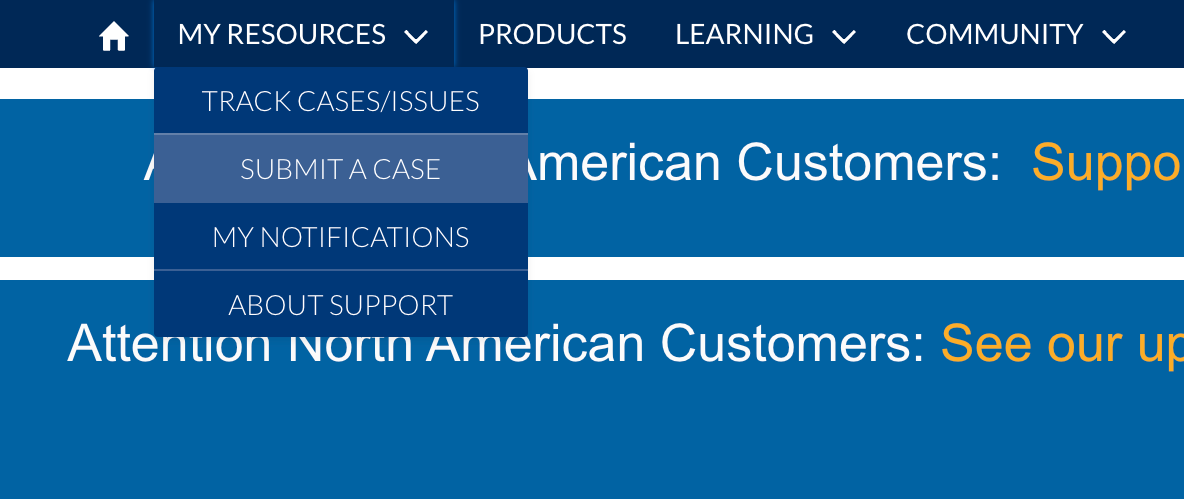
- Select My Resources, then Submit a Case.
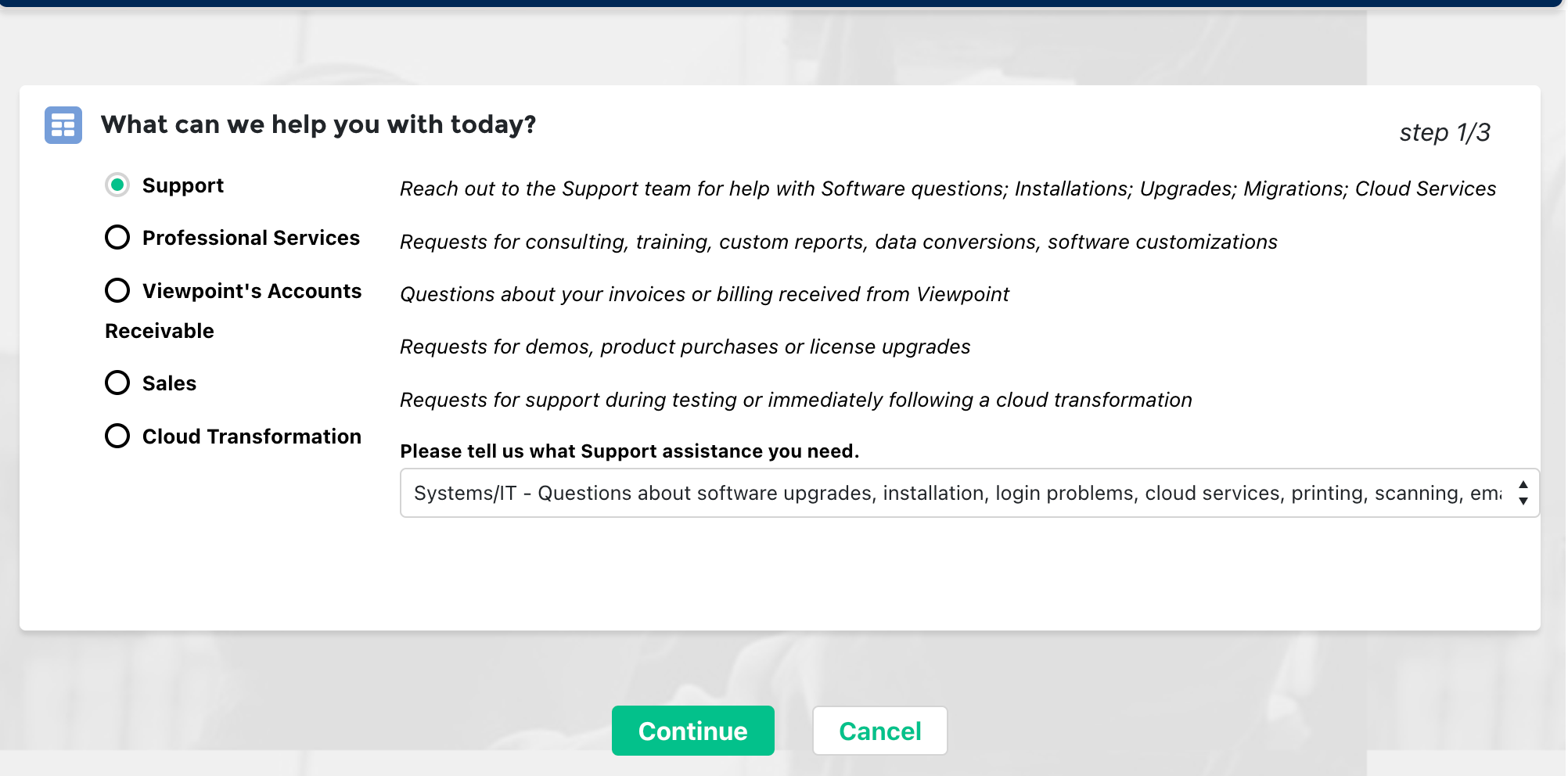
- Select Support, then Systems/IT.
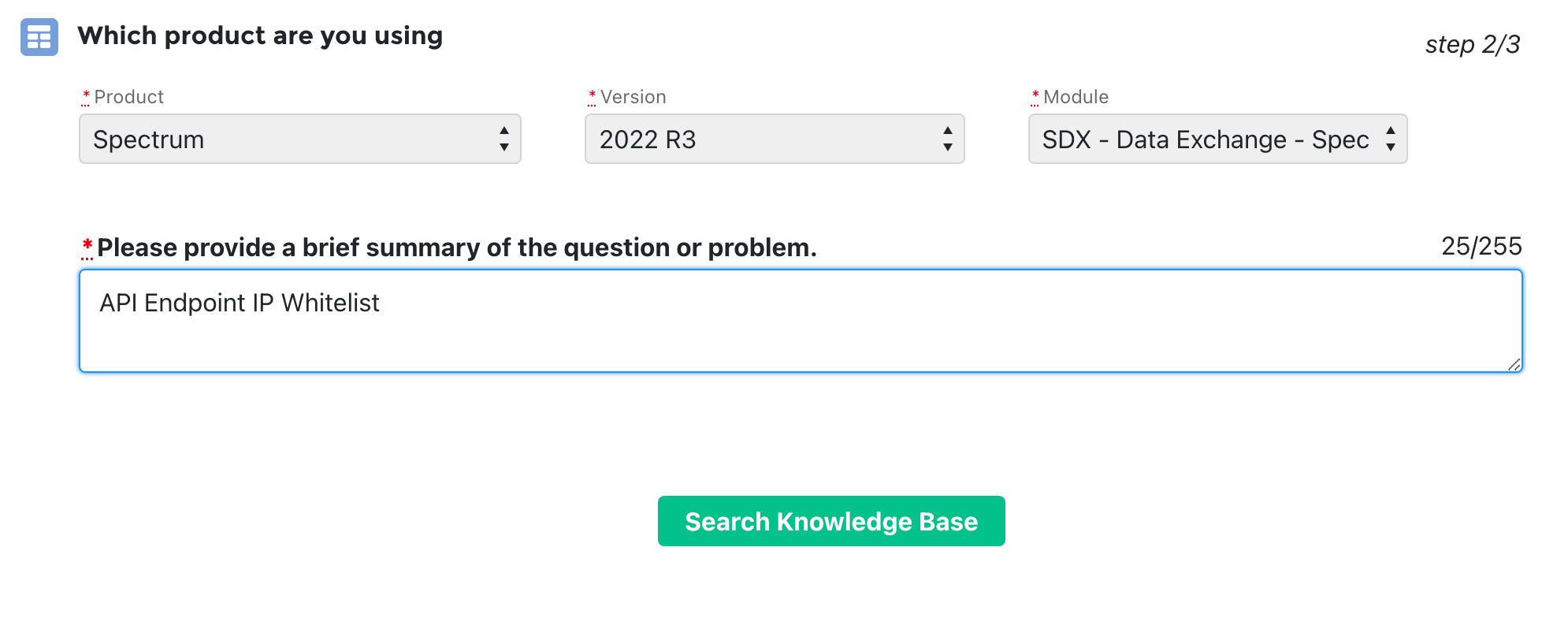
- Under Which product are you using?, enter the following and select Search Knowledge Base:
- Product: Spectrum
- Version: your Spectrum instance version (e.g. 2022 R3)
- Module: SDX - Data Exchange - Spectrum
- Brief Summary: API Endpoint IP Whitelist
- Scroll to the bottom and select Continue to Case Creation.
- Under Case Create, choose a Priority. In Description, include:
Hi — we are looking to whitelist our IPs for Spectrum API Endpoint connectivity with our Spectrum instance. Here are our static IPs:
- 54.92.249.93/32
- 52.5.23.219/32
- 54.197.231.154/32
- 54.165.52.95/32
- 3.220.228.232/32
Could you also confirm the database hostname (e.g. xyz-data.dexterchaney.com), database name(e.g. Spectrum_00xxxxx), and port for our instance?
- Select Submit.
- Viewpoint Support typically responds within 24–48 hours confirming the IP addresses are whitelisted.
Step 1B: On-premise Viewpoint Spectrum
If Spectrum is on-premise, allow GCPay to reach your SQL Server by adding these static IP addresses to your network firewall:
- 54.92.249.93/32
- 52.5.23.219/32
- 54.197.231.154/32
- 54.165.52.95/32
- 3.220.228.232/32
If GCPay still cannot connect after whitelisting these addresses, contact GCPay Support for help troubleshooting on-premise connectivity.
Step 2: Create Info-Link users
Info-Link credentials let GCPay read data from Spectrum tables and support invoice and related operations.
- Log in to Viewpoint Spectrum.
- Select the + at the top of the page.
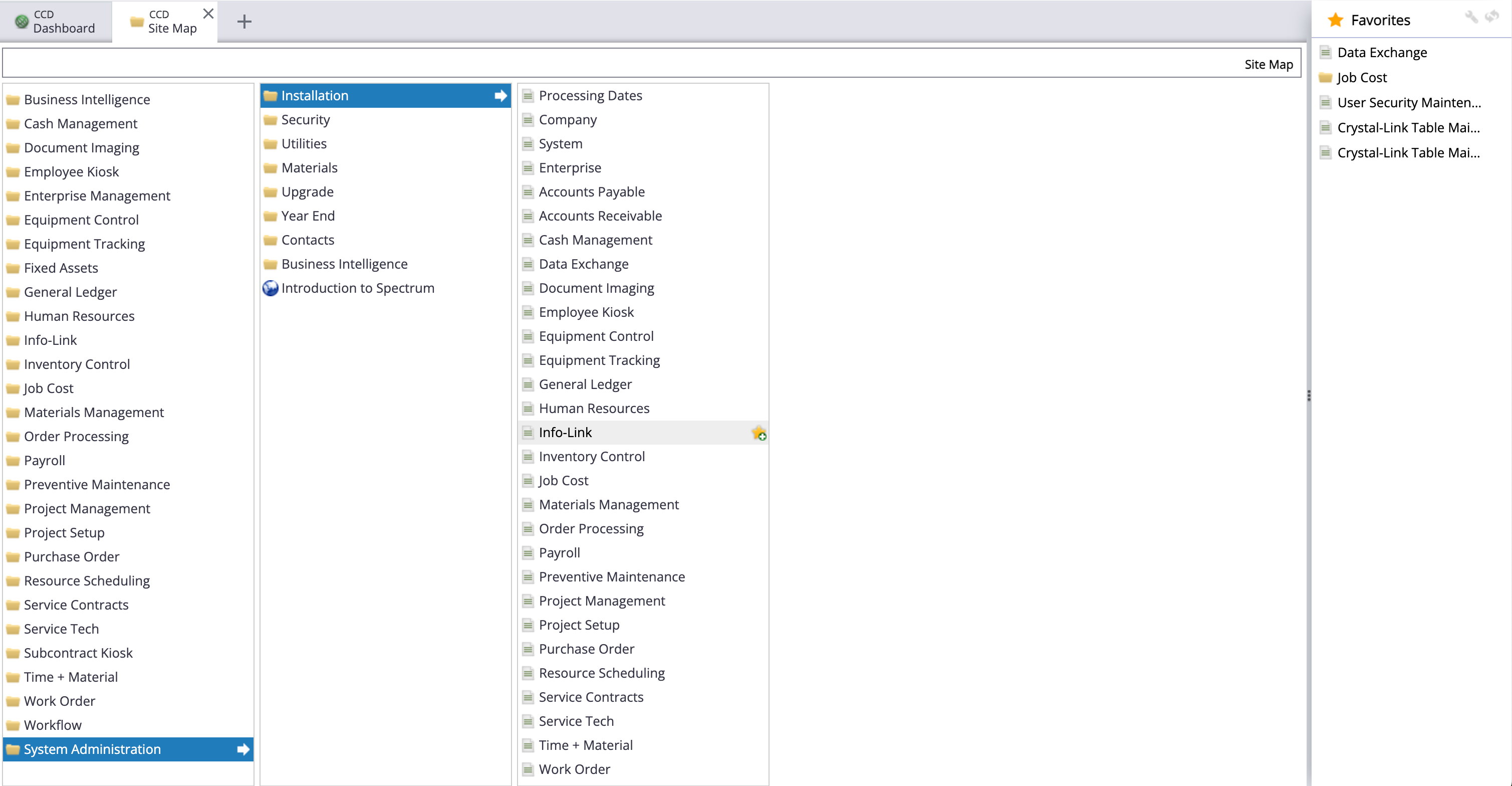
- Select System Administration > Installation > Info-Link.
- Select Reset until the Info-Link User ID increments at least twice (for example from
INFO0001toINFO0003). Select Save.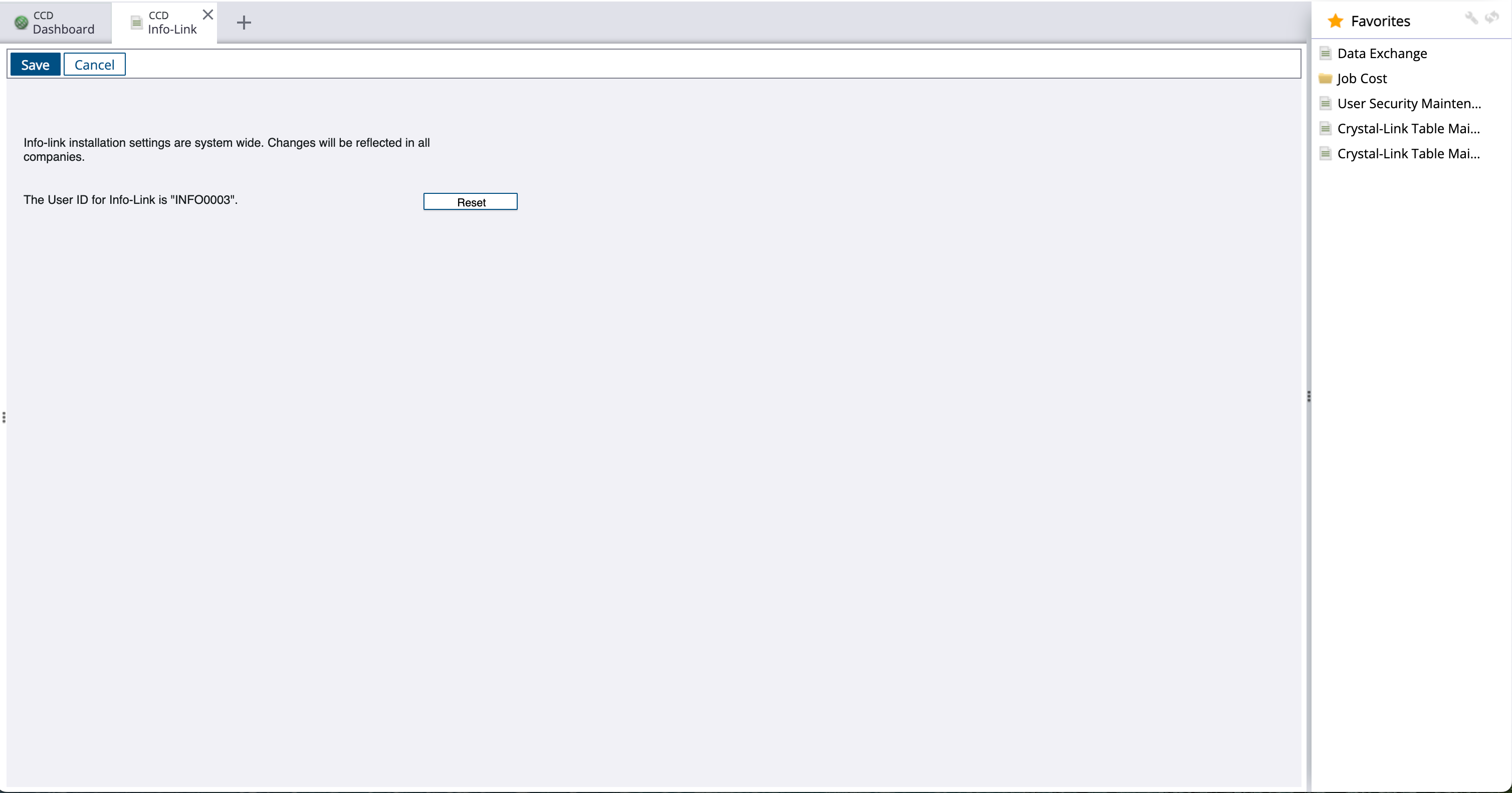
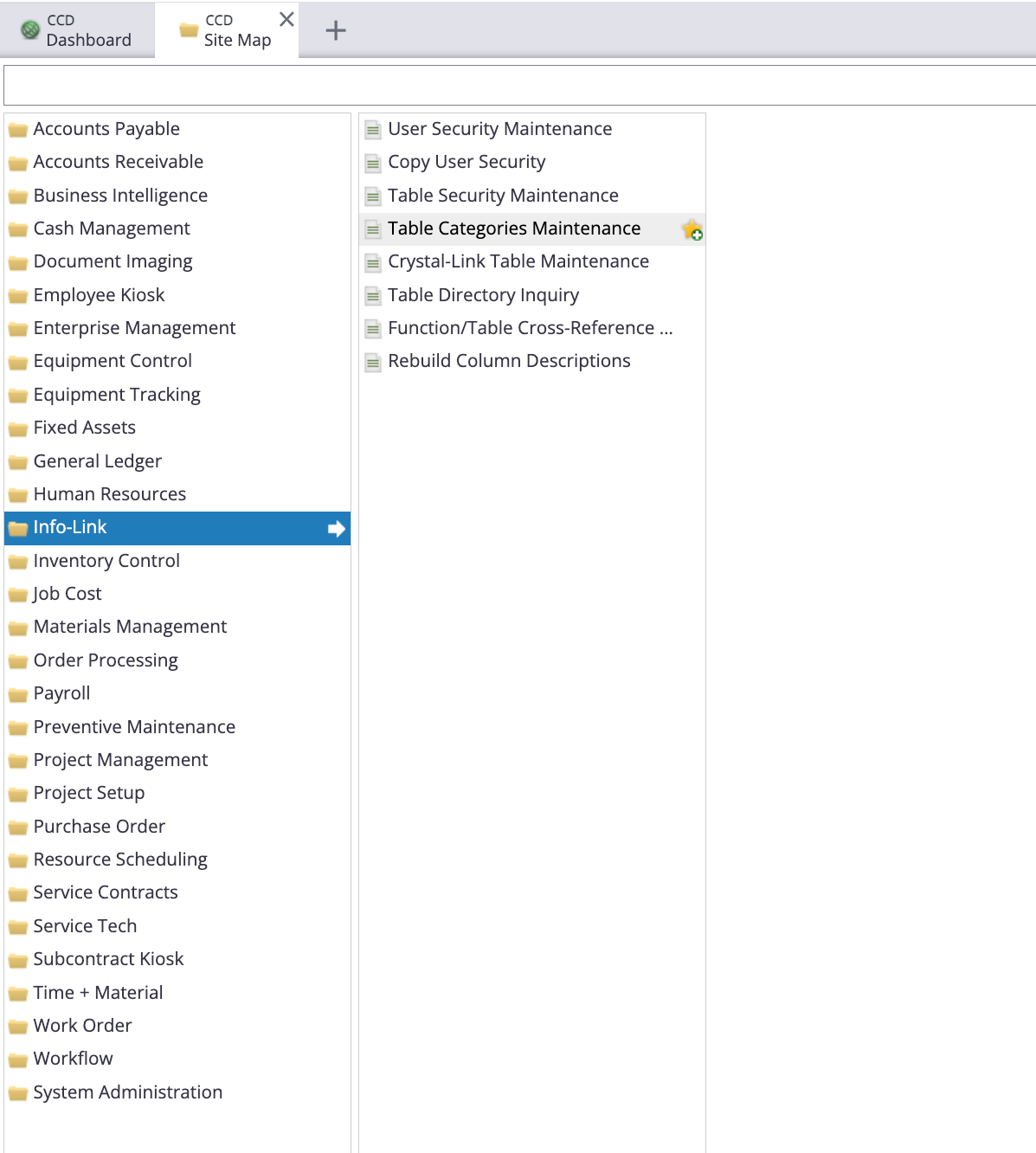
- Return to the Site Map. Select Info-link > Table Categories Maintenance.
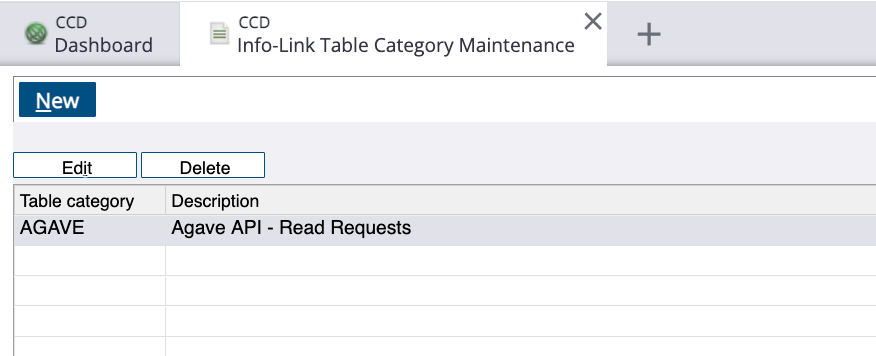
- Select New and add a Table Category and Description. You may use one category for all GCPay tables or split categories by module.
Complete step 4 (increment User ID at least twice) before continuing.
- Return to the Site Map. Select Info-link > Table Security Maintenance.
- Select New and add each table listed below. Set Read access to 9 and Write access to 9 for every table.
Required Info-Link tables (alphabetical)
| Spectrum table | Read access | Write access |
|---|---|---|
CR_CHNG_REQ_CON_DET_MC | 9 | 9 |
CR_CHNG_REQ_HDR_MC | 9 | 9 |
CR_CHNG_REQ_REV_MC | 9 | 9 |
CR_CHNG_REQ_STATUS_MC | 9 | 9 |
CR_CUSTOMER_MASTER_MC | 9 | 9 |
CR_MASTER_TERM_MC | 9 | 9 |
GL_MASTER_MC | 9 | 9 |
JC_JOB_MASTER_MC | 9 | 9 |
JC_PHASE_MASTER_MC | 9 | 9 |
PO_PURCHASE_ORDER_DETAIL_MC | 9 | 9 |
PO_PURCHASE_ORDER_HEADER_MC | 9 | 9 |
VN_CHNG_REQ_SUB_DET_MC | 9 | 9 |
VN_CHNG_REQ_SUB_HDR_MC | 9 | 9 |
VN_CURRENT_ROUT_PROCESS_MC | 9 | 9 |
VN_DOCUMENT_TRACK_ITEM_MC | 9 | 9 |
VN_GL_DISTRIBUTION_DETAIL_MC | 9 | 9 |
VN_GL_DISTRIBUTION_HEADER_MC | 9 | 9 |
VN_INVOICE_APPROVAL_DET_MC | 9 | 9 |
VN_INVOICE_APPROVAL_HDR_MC | 9 | 9 |
VN_INVOICE_TRAN_DETAIL_MC | 9 | 9 |
VN_INVOICE_TRAN_HEADER_MC | 9 | 9 |
VN_MANUAL_CHECK_WORK_MC | 9 | 9 |
VN_PAYMENT_HISTORY_MC | 9 | 9 |
VN_ROUTING_HISTORY_MC | 9 | 9 |
VN_SUBCONTRACT_MC | 9 | 9 |
VN_SUBCONTRACT_PHASE_MC | 9 | 9 |
VN_VENDOR_MASTER_MC | 9 | 9 |
VN_VENDOR_SUB_COMPLIANCE_MC | 9 | 9 |
VN_VEND_SUB_DOC_TRACK_MC | 9 | 9 |
- Select Update Database.
- Return to the Site Map. Select Info-link > User Security Maintenance.
- Select New, choose a Company, then either pick an existing database user or type a new database user name. For a new user, press Enter, set a Password, and assign the Table Category.
Password requirements
- At least 8 characters
- At least one letter, one number, and one special character (e.g. !, @, #, $)
- Must not appear in known password breach lists (checked securely during setup)
Increment the Info-Link User ID (step 4) before creating users. Use a unique link user name across Spectrum companies to avoid validation errors. If you are unsure, contact GCPay Support before proceeding.
- Select Update Database.
Step 3: Create Authorization ID
Configure a Data Exchange Authorization ID and enable the web services GCPay uses.
- Log in to Viewpoint Spectrum.
- Select the + at the top of the page.
- Select System Administration > Installation > Data Exchange.
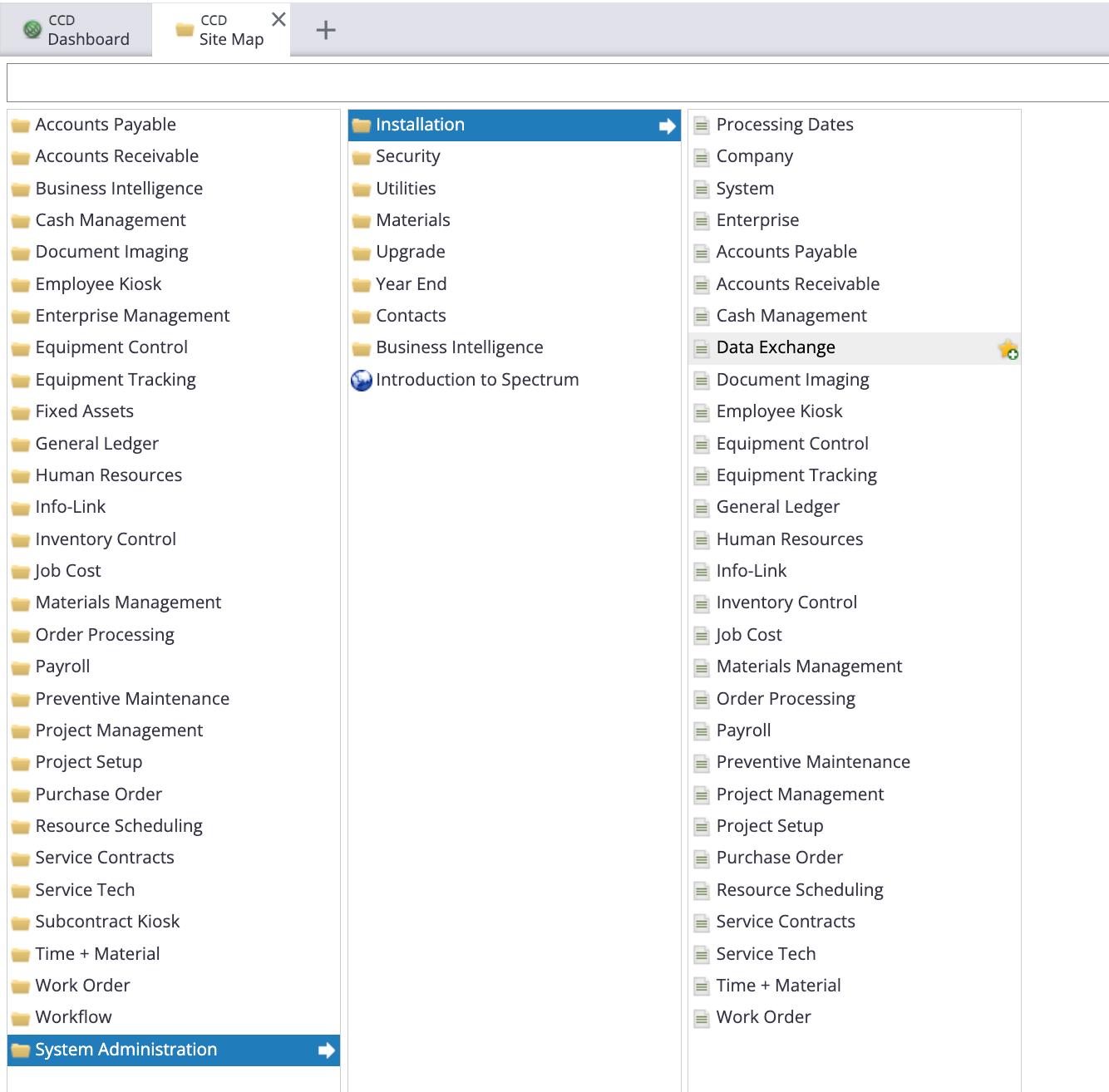
- On the Data Exchange screen, select New.
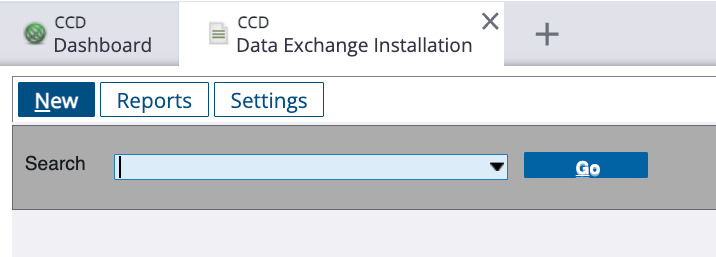
- Enter a name for the Authorization ID (e.g. GCPay).
- Select a Company Code and Operator Code, and set Status to Active.
You may use an existing operator. Prefer an operator with broad Spectrum permissions (for example Controller or CFO). The Authorization ID inherits permissions from that operator; limited operators can cause sync errors.
- Add a memo (e.g. API access for GCPay).
- Select Build, then enable each web service listed below under the appropriate service module in Data Exchange.
Required web services
| Web service |
|---|
AddAPInvoice |
AddCustomer |
AddJob |
AddPhase |
AddVendor |
APMultiLineInvoice |
ARChangeRequest |
ARChngReqBlankBIUpdate |
ARScheduleOfValues |
CustomerBillto |
CustomerNotes |
CustomerShipto |
GetCustomers |
GetJob |
GetJobContact |
GetJobDates |
GetJobMain |
GetPhase |
GetPhaseEnhanced |
GetVendors |
PhaseNotes |
SubcontractNotes |
UpdateJob |
UpdateSubcontract |
UpdateSubcontractPhases |
UpdateVendor |
UpdateVendor_Locations |
VendorNotes |
- Select OK.
- On the Data Exchange Installation page, select Settings and enable Enhanced Authentication (recommended).
Basic Authentication is supported if you prefer not to use Enhanced Authentication. Enhanced Authentication is more secure.
If you use Enhanced Authentication, when editing the Authorization ID enable Allow self-rotation? so API access continues to work after credentials expire.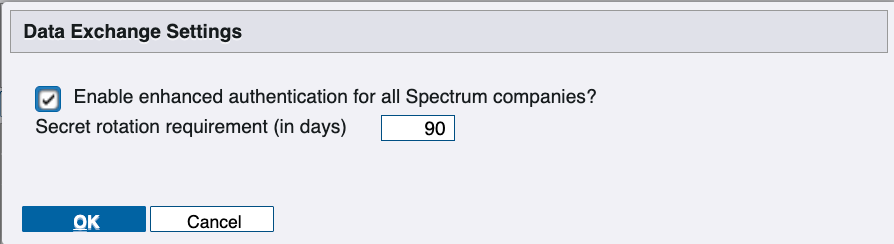
Step 4: Connect Spectrum in GCPay
After Spectrum is configured, collect these values from Spectrum and provide to your Account Manager at GCPay.
- Authorization ID — the ID you created in Step 3
- Company Code — shown on the Edit Authorization ID screen (top right, Company: {code})
- Spectrum URL — your instance URL (e.g.
https://{company}.dexterchaney.com) - Client ID and Client Secret — only if Enhanced Authentication is enabled: select the Authorization ID, Edit, then Secret Status
- Database hostname — e.g.
{company}-data.dexterchaney.comfor hosted Spectrum (must be reachable from GCPay’s static IPs) - Database port — default
1433 - Database name — often
Spectrumor your Viewpoint-provided name - Info-Link user and password from Step 2
Need help?
Contact GCPay Support with your Spectrum version, hosting type (cloud vs on-premise), and screenshots of any Data Exchange or Info-Link errors.